 how-to
How to Fix Crawl Errors on My Website: 2026 Guide
Table of Contents
- What Are Crawl Errors and Why They Hurt Your SEO
- What You'll Need Before You Fix Crawl Errors on Your Website
- Step 1: Find Google Search Console Crawl Errors in the Index Coverage Report
- Step 2: How to Fix 404 Errors and Broken Links
- Step 3: Server Error 5xx Fixes and DNS Error Resolution
- Step 4: Run a Full Site Audit with SEO Tools
- SEO Crawl Budget Optimization to Prevent Future Errors
- Advanced: JavaScript Rendering Errors and Mobile-First Indexing Issues
- How to Fix Crawl Errors on Your Website Using Automated Workflows
- Common Mistakes to Avoid When Resolving Crawl Errors
Last Updated: June 5, 2026
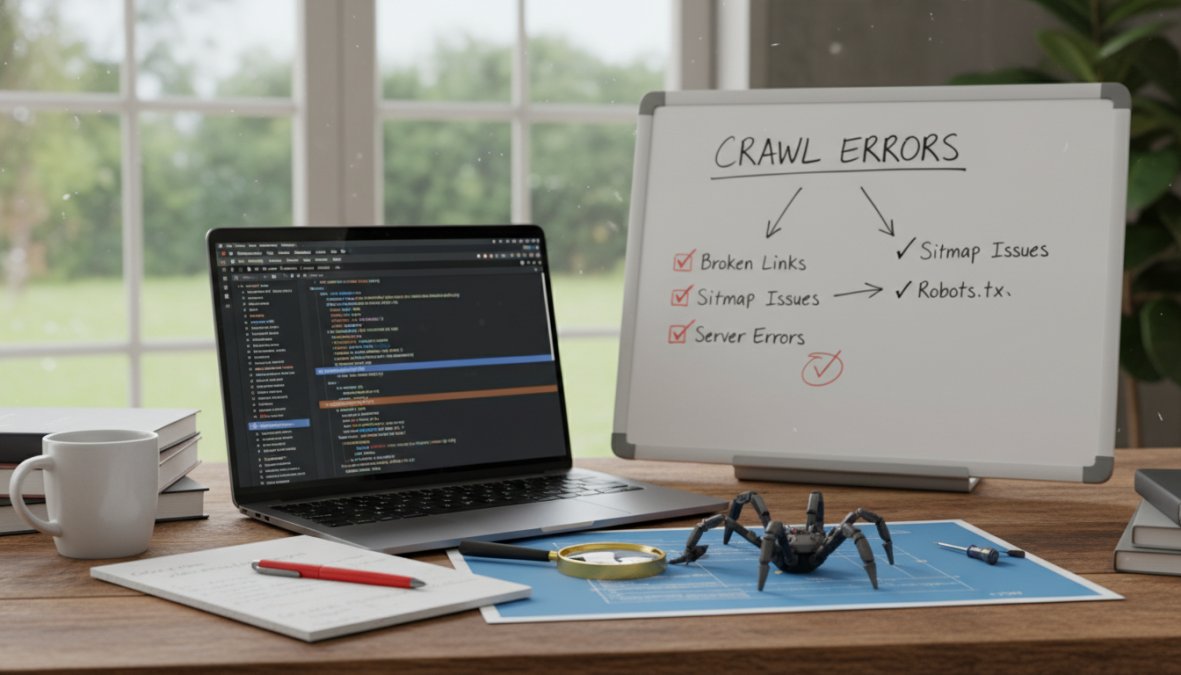
Crawl errors are one of the most underdiagnosed causes of ranking drops, and knowing how to fix crawl errors on my website is a skill every site owner needs in 2026. This guide from GrandRanker covers every major error type, from 404s and 5xx server failures to JavaScript rendering gaps and mobile-first indexing issues, with step-by-step remediation for each. Many site owners discover crawl problems only after organic traffic has already declined. The good news: most errors are fixable within hours once you know where to look.
A crawl error is any condition that prevents Googlebot from successfully accessing, rendering, or indexing a URL. Left unresolved, these errors erode crawl budget, suppress indexing, and quietly drain organic traffic. Below, we'll show you how to diagnose and resolve every major error category, including two angles most guides skip: automated remediation workflows and JavaScript-specific rendering failures.
What Are Crawl Errors and Why They Hurt Your SEO
Crawl errors are failures that occur when a search engine crawler attempts to access a URL and receives an unexpected or invalid response. Pages that can't be crawled can't be indexed, and pages that can't be indexed don't rank. When crawl errors accumulate across hundreds of URLs, they consume crawl budget that should be spent on your most valuable content. According to Google Search Central documentation on crawl management, Googlebot allocates a finite number of requests per site based on server health and crawl frequency signals, wasting those requests on broken pages is a compounding SEO problem.
Site Errors vs. URL Errors: Key Differences
Site errors affect the entire domain. DNS errors, server connectivity failures, and robots.txt fetch failures all fall here. A single misconfigured DNS record can make your entire site invisible to Googlebot for hours.
URL errors affect individual pages, 404s, soft 404s, access denied errors, and URL-specific timeouts. They're more common but easier to triage since they're isolated.
The distinction matters for prioritization. A site error is a five-alarm fire requiring immediate infrastructure attention. A URL error is a maintenance task that can be batched and resolved systematically.
How Crawl Errors Affect Organic Traffic and Indexing
A single 404 on an obscure page won't move the needle, but a pattern of errors across category pages, product URLs, or recently migrated content can trigger a measurable drop in the Index Coverage report within weeks.
Soft 404s are particularly damaging because Google treats them as low-quality signals even when the page technically loads. A page returning a 200 HTTP status but displaying "no results found" confuses Googlebot and often results in de-indexing without any clear error flag in Google Search Console.
What You'll Need Before You Fix Crawl Errors on Your Website
Getting set up correctly before you start saves significant time. Here's what you need:
- Google Search Console access with your property verified (domain property preferred over URL-prefix property for complete data)
- An SEO crawl tool: Screaming Frog SEO Spider, Sitebulb, or a platform like Ahrefs Site Audit for large-scale analysis
- Server log access: cPanel, SSH access, or your hosting provider's log viewer
- A staging environment if you plan to test server configuration changes before pushing live
- Your XML sitemap URL (typically
sitemap.xmlorsitemap_index.xml) - Robots.txt file access via your CMS or FTP
For teams in Ljubljana and the broader Slovenian market, many shared hosting providers limit direct log access. If that's your situation, your hosting control panel's "Error Logs" section is the fallback.
Step 1: Find Google Search Console Crawl Errors in the Index Coverage Report
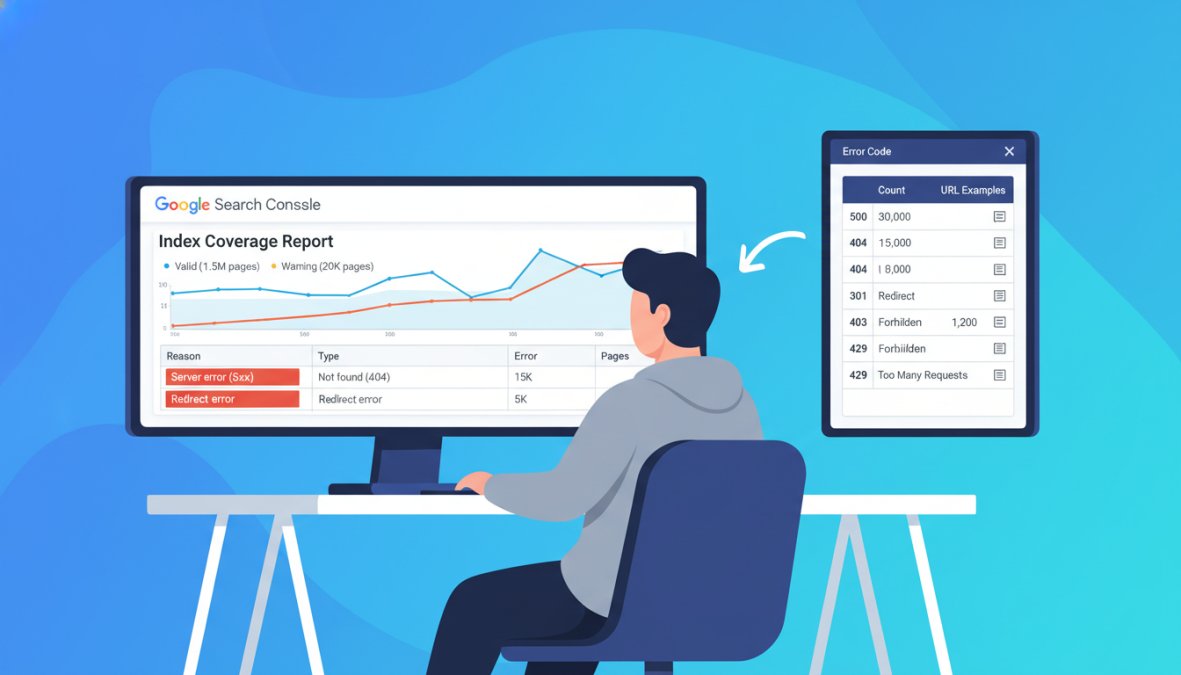
The Index Coverage report is the primary dashboard for diagnosing crawl and indexing failures. Open Google Search Console, navigate to "Indexing" in the left sidebar, then select "Pages." This view segments URLs into four states: Error, Valid with warnings, Valid, and Excluded.
Focus on the "Error" tab first. Clicking any error type reveals the specific URLs affected and the date each was first detected. Export this list to a spreadsheet before fixing anything, you need a baseline to measure against.
Using the URL Inspection Tool to Diagnose Individual Pages
The URL Inspection Tool is the most precise diagnostic instrument in Google Search Console. Paste any URL into the search bar to retrieve its last crawl date, crawl status, indexing status, and any specific errors Googlebot encountered.
Pay close attention to the "Coverage" section within the inspection result, it tells you whether the page is indexed, excluded, or blocked, and why. For pages returning unexpected status codes, the tool shows the actual HTTP response Googlebot received, which often differs from what your browser shows due to user-agent-based redirects.
For pages that should be indexed but aren't appearing in search, click "Test Live URL" to force a fresh crawl and compare the live result against the cached version. A discrepancy often points to a caching issue or a recently introduced blocking rule in robots.txt.
Step 2: How to Fix 404 Errors and Broken Links
How to fix 404 errors starts with categorization. Run a site audit using Screaming Frog or Ahrefs to identify all URLs returning 404 responses. Cross-reference this list against Google Search Console data to find which 404s were previously indexed. Previously indexed 404s are high priority; never-indexed 404s are low priority and often safe to ignore.
For each high-priority 404, answer one question: does equivalent content exist elsewhere on the site? If yes, implement a 301 redirect. If no, assess whether the page is worth recreating.
When to Redirect vs. When to Restore a Page
The decision tree is straightforward:
- Redirect when the URL had backlinks, organic traffic, or internal links pointing to it, and equivalent content exists at another URL
- Restore when the URL had significant traffic and no equivalent page exists elsewhere
- Leave as 404 when the URL was never indexed, had no backlinks, and no equivalent content exists
- Return 410 Gone when the content was intentionally removed and you want Google to de-index it faster than a standard 404
A common mistake is redirecting every 404 to the homepage. This creates what Google calls a "soft 404" from the redirect destination's perspective and provides no SEO value. Redirects must point to genuinely relevant content.
Fixing Soft 404s and Improving Internal Linking
Soft 404s require a content fix, not just an HTTP status fix. A page returning 200 but displaying empty search results, "out of stock" notices with no alternatives, or thin placeholder content needs either real content added or a proper 404/410 response code returned.
Internal linking is the often-overlooked second half of broken link remediation. After fixing or redirecting 404 pages, audit your internal links to remove or update anchors still pointing to old URLs. Screaming Frog can crawl your site specifically for internal links returning non-200 responses.
Step 3: Server Error 5xx Fixes and DNS Error Resolution
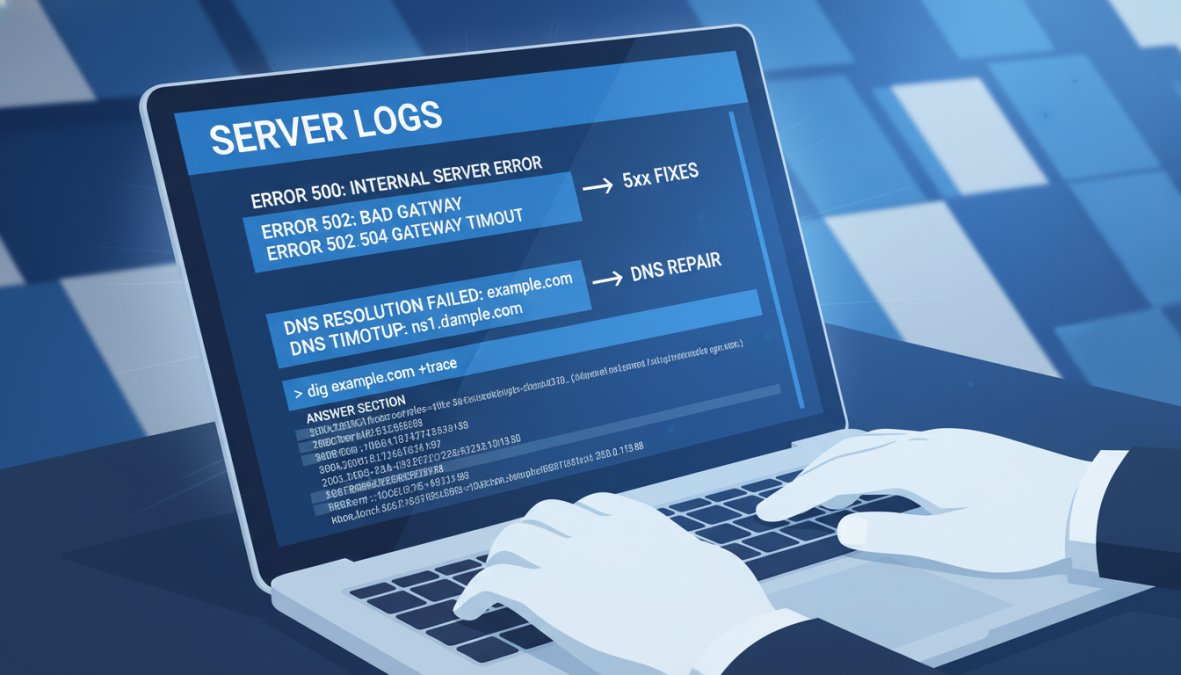
Server errors (5xx) are the most urgent crawl errors to resolve. A 500 Internal Server Error tells Googlebot your server received the request but failed to process it; a 503 Service Unavailable suggests temporary overload. Both cause Googlebot to back off and reduce crawl frequency, compounding indexing delays.
Common causes of 5xx errors include overloaded shared hosting, PHP memory limit exhaustion on WordPress sites, misconfigured .htaccess rules, database connection failures, and faulty plugins timing out.
DNS errors occur when Googlebot can't resolve your domain to an IP address at all. Check your DNS configuration via your registrar's control panel and verify nameserver propagation using DNS propagation checker.
Reading Server Logs to Pinpoint the Root Cause
Server logs are the ground truth for 5xx diagnosis. Filter your error log for entries with "Googlebot" references alongside 500-range status codes, the error message typically names the failing script, database connection, or memory threshold. On Apache, look for [error] entries; on Nginx, look for [crit] or [error] level entries.
A pattern of 503 errors clustered at specific times of day points to resource contention, often solvable by upgrading your hosting plan or implementing server-side caching. A pattern of 500 errors tied to specific URL paths points to a code-level issue in that section of your site.
Step 4: Run a Full Site Audit with SEO Tools
A manual review of Google Search Console catches errors Google has already recorded. A proactive site audit catches everything else before Google does.
The most effective approach combines a JavaScript-rendering crawler for client-side issues with a traditional crawler for server-side issues. Screaming Frog with JavaScript rendering enabled covers both when configured correctly. Sitebulb provides more visual reporting for teams communicating findings to non-technical stakeholders.
Here's a practical audit checklist:
- Crawl the full site and export all non-200 status codes
- Identify redirect chains longer than 2 hops (each hop wastes crawl budget)
- Flag pages blocked by
robots.txtthat should be indexable - Identify pages with canonical tags pointing to non-existent or redirected URLs
- Check for pages returning 200 but containing unintentional noindex meta tags
- Verify XML sitemap URLs all return 200 and are submitted to Google Search Console
- Flag orphan pages with no internal links pointing to them
Run this audit monthly for sites under 10,000 pages. For larger sites, automate it weekly using API access available in most enterprise SEO tools.
SEO Crawl Budget Optimization to Prevent Future Errors
Crawl budget optimization is what separates sites that rank from sites that stagnate. Crawl budget is the number of URLs Googlebot will crawl within a given timeframe, every wasted request on a low-value URL is a request not spent on your most important pages.
According to Google's official guidance on crawl budget, crawl budget matters most for sites with more than a few thousand URLs, significant content churn, or large numbers of low-quality or duplicate pages. The GrandRanker approach treats it as a resource allocation problem: maximize the proportion of crawl budget spent on indexable, high-value pages.
Robots.txt, Canonical Tags, and Sitemap Best Practices
Robots.txt should block Googlebot from crawling faceted navigation parameters, internal search result pages, admin paths, and staging subdirectories. What it should NOT block: any URL you want indexed, or CSS and JavaScript files Googlebot needs to render pages correctly.
Canonical tags resolve duplicate content at scale. Every paginated series, filtered product listing, and URL parameter variation needs a canonical pointing to the authoritative version. Misconfigured canonicals are a leading cause of pages appearing in the "Excluded" tab labeled "Duplicate, Google chose different canonical than user."
XML sitemaps should include only indexable, canonical URLs returning 200 status codes. A sitemap containing redirected, noindexed, or 404 URLs actively confuses Googlebot and degrades crawl efficiency. Audit your sitemap against your live crawl data quarterly.
Advanced: JavaScript Rendering Errors and Mobile-First Indexing Issues
JavaScript rendering errors and mobile-first indexing failures are two of the fastest-growing crawl problem categories in 2026, requiring a fundamentally different diagnostic approach. Googlebot renders JavaScript in a second wave after the initial crawl, if your site relies on client-side rendering for critical content, that content may not be indexed at all. The URL Inspection Tool's "View Tested Page" screenshot is your first check: if the rendered screenshot looks different from what a user sees in a browser, you have a rendering problem.
Common JavaScript crawl errors include:
- Content loaded via
fetch()orXHRcalls that Googlebot's renderer doesn't execute - Lazy-loaded images using
IntersectionObserverthat never trigger during headless rendering - Single-page application (SPA) frameworks where internal navigation doesn't produce crawlable URL changes
- Third-party script timeouts that block page rendering entirely
For mobile-first indexing, Google primarily uses the mobile version of your page for indexing and ranking. A common failure pattern: desktop pages have full structured content while mobile versions hide significant text behind "Read more" toggles or load content conditionally. Check your mobile rendering specifically using the URL Inspection Tool's mobile user-agent option.
The fix for most JavaScript rendering issues is server-side rendering (SSR) or static site generation (SSG) for critical content. For content that must be client-side rendered, implement dynamic rendering as a fallback specifically for Googlebot's user-agent.
How to Fix Crawl Errors on Your Website Using Automated Workflows
Manual remediation works for small sites. For sites with thousands of URLs or continuous content publishing, manual processes break down within weeks. A practical automated workflow for how to fix crawl errors on my website at scale looks like this:
- Scheduled crawl: Configure your SEO tool's API to run a full crawl weekly and export results to a central data store (Google Sheets, Airtable, or a database)
- Error classification: Use a script or no-code tool (Zapier, Make) to classify new errors by type and severity automatically
- Alert routing: Route 5xx errors and DNS failures to your DevOps team immediately via Slack or PagerDuty; route 404s to your content team as a weekly digest
- Redirect management: Maintain a centralized redirect map in your CMS or
.htaccessthat your team updates as new 404s are identified - Verification loop: After fixes are deployed, use the Google Search Console API to request re-indexing of resolved URLs and track their status change from "Error" to "Valid"
According to Google Search Console API documentation, the URL Inspection API allows programmatic access to crawl and index status data, enabling automated monitoring that manual console checks can't match.
For Ljubljana-based businesses and teams across Slovenia working with limited SEO resources, GrandRanker automates the keyword research, content optimization, and publishing layers of this workflow, reducing the manual overhead of maintaining site health at scale.
Common Mistakes to Avoid When Resolving Crawl Errors
Most crawl error remediation fails not because the fixes are wrong, but because the process is incomplete.
Fixing errors without validating the fix. After implementing a redirect or restoring a page, use the URL Inspection Tool to confirm Google sees the correct response. Deployments fail and caches interfere, always verify.
Ignoring the "Excluded" tab in favor of the "Error" tab. The Excluded tab contains URLs Google has chosen not to index for reasons that aren't technically errors: duplicate content, crawled but not indexed, discovered but not indexed. These often represent larger architectural problems that 404 fixes won't touch.
Treating all crawl errors as equally urgent. A 404 on a page that was never indexed and has no backlinks is not worth your time. A 404 on a page with 50 backlinks and historical organic traffic is a revenue problem. Triage by impact, not by volume.
Submitting sitemaps without auditing them first. A sitemap full of redirected and 404 URLs tells Google your site is poorly maintained.
Overlooking false positives in GSC. Google Search Console occasionally reports crawl errors for URLs that are actually functioning correctly, common with URL parameters, internationalized URLs, and pages behind authentication. Before fixing an "error," verify the URL actually returns the reported status code using curl or browser developer tools. Chasing false positives wastes remediation time and can introduce real errors where none existed.
The real throughline across all these mistakes is the same: crawl error remediation is a diagnostic process, not a to-do list. Understand what each error means, verify it's real, fix the root cause, and confirm the resolution. That discipline separates sites that maintain strong SEO performance from those that cycle through the same errors repeatedly.
For a comprehensive reference on HTTP status codes and their SEO implications, MDN Web Docs HTTP response status codes reference is the most reliable technical resource available.
Crawl errors accumulate quietly and compound over time, making them one of the most damaging technical SEO issues a site can face. GrandRanker's AI-powered platform automates the monitoring, content optimization, and publishing workflows that keep your site healthy and indexable, so Googlebot spends its budget on your best pages rather than your broken ones. With features like automated keyword research and content publishing on autopilot, you're not just fixing today's errors but preventing tomorrow's. Start your free trial with GrandRanker and build the kind of technical SEO foundation that sustains organic traffic growth through algorithm updates and site changes alike.
Frequently Asked Questions
What are crawl errors in SEO?
Crawl errors occur when Googlebot or another search engine spider tries to access a page on your website but fails. Common types include 404 Not Found errors (the page doesn't exist), 5xx server errors (your server failed to respond correctly), DNS errors, and timeout issues. These errors signal poor website health and can prevent pages from being indexed, directly reducing your organic traffic and SEO performance.
Do crawl errors affect SEO rankings?
Yes, crawl errors can negatively affect your SEO rankings. When Googlebot cannot crawl a page, that page cannot be indexed, meaning it won't appear in search results. Widespread server errors can also waste your crawl budget, causing Google to crawl fewer of your important pages. Fixing crawl errors on your website, especially 404s and 5xx server errors, is a foundational technical SEO task that protects indexability and organic traffic.
How do I find crawl errors on my website using Google Search Console?
Open Google Search Console and navigate to the Index Coverage report under the Indexing section. This report categorizes URLs into Error, Valid with warnings, Valid, and Excluded. Click the Error tab to see specific Google Search Console crawl errors grouped by type, such as 404 Not Found, server errors, or redirect issues. Use the URL Inspection Tool to diagnose individual pages and check whether Googlebot can currently access and render them.
What is the difference between a 404 error and a 500 server error?
A 404 Not Found error means the requested URL does not exist on your server, the page was deleted, moved, or the link is broken. A 500-series (5xx) server error means the server encountered a problem and failed to fulfill the request, even though the URL may be valid. Fixing 404 errors typically involves setting up redirects or restoring content, while 5xx server error fixes require diagnosing server misconfigurations, hosting issues, or overloaded resources using server logs.
How long does it take Google to recognize crawl error fixes?
After you fix crawl errors on your website, Google needs to re-crawl the affected URLs before it updates its index. This can take anywhere from a few days to several weeks depending on your site's crawl frequency and crawl budget. You can speed up the process by submitting your sitemap in Google Search Console, using the URL Inspection Tool to request indexing for priority pages, and ensuring your robots.txt is not blocking Googlebot from re-crawling fixed URLs.
What are false positives in Google Search Console crawl error reports?
False positives are URLs flagged as errors in GSC that are not actually problems. Common examples include intentionally removed pages that return a correct 404, paginated URLs that were never meant to be indexed, or URLs with parameters that duplicate canonical content. Before fixing every reported error, verify each URL manually with the URL Inspection Tool or server logs. Mishandling false positives, such as adding unnecessary redirects, can waste crawl budget and create redirect chains.
This article was written using GrandRanker